
You’re really busy, and you don’t have time to read Commoncog cases. At some point you may have thought: wouldn’t it be nice to be able to listen to cases wherever I am, as I’m working out or driving or cooking or washing the dishes?
Well, if you’re a Commoncog member, you can now. With Commoncog’s podcast feed feature, you will be able to:
- Set up a podcast feed.
- Add it to your podcast player of choice.
- Have new cases automatically show up in your feed, or
- Add specific cases or whole concept sequences to your feed.
Here’s how to do all of this.
Note, as of initial launch, 100% of Commoncog cases are available as audio. However, Commoncog essays are not yet available. We have more QA work to do to ensure they are all converted and of the high quality that you’ve come to expect from Commoncog.
What is a Podcast and How Do I Get It?
A podcast is an audio show that you download through the internet. A podcast show consists of a ‘feed’, which is simply a record of all the episodes released for that podcast. When a new episode is released, the feed is updated. You subscribe to a podcast show by adding the feed to your podcast player, which is an app you download on your phone.
Your podcast player will periodically check the feed for you. When it detects that a new episode has been added to the feed, it will download those episodes in the background and have them queued up and ready for you to listen when you’re on the go.
Many people listen to podcasts in the car, whilst driving, or when they’re doing something else — like working out at the gym, or doing chores around the house.
Here’s a Wikipedia article about podcasts in general. If you’re new to podcasts, you’ll want to get yourself a podcast player for your phone. Here are two articles that recommend various podcast apps for both Android and iOS:
- What’s the best podcast app for iPhone? (9to5Mac)
- Our favourite Android apps to replace Google Podcasts (9to5Google)
Commoncog’s podcast feed feature produces a feed, but the difference is that you also get to decide what episodes are added to that feed.
This means that you can browse the Case Library, see a case or a list of cases that interests you, hit a button, and then have that specific case added to your feed. Your podcast player will then detect these new additions as new episodes that it needs to download. Then you can go off and listen to your selections whilst you’re on the go.
Alright! With that out of the way ...
What Makes Commoncog’s Private Podcast Feed Special
Most podcast feeds are controlled by the publisher — when a new episode is ready, it gets published, appears on the feed, and your podcast player downloads it. Commoncog’s private podcast feed works differently: you have total control of which episodes get added to your feed.
The idea here is that sometimes you want to listen to specific concepts or revisit certain cases in a particular order. To do this, you go to the Commoncog Case Library, search through the cases or concepts, and click ‘Add to feed.’ Only then does it get added.
Of course, if you choose to allow it, any new cases that are published will automatically be added to your feed as well. But we also want to give you the ability to add things to your feed manually.
The reason for this is pedagogical — that is, for learning. Unlike a podcast feed, which is a broadcast-oriented medium, the Commoncog Case Library is a library — and we want you to select the pieces of content that are most relevant to your learning.
Setting Up Your Custom Podcast Feed
First, let’s get you set up.
You will want to add your custom podcast feed to your podcast player of choice.
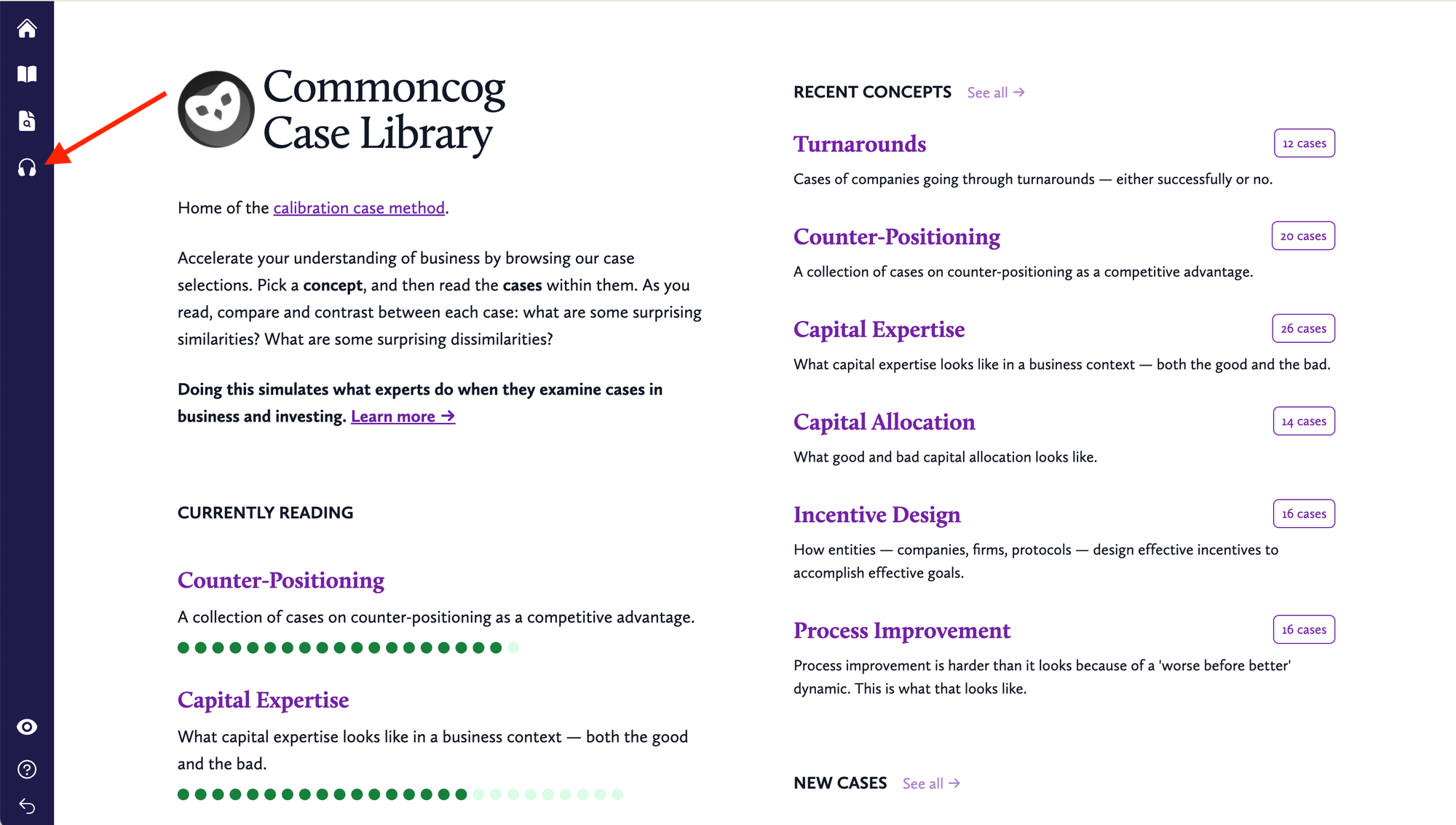
Once you’re logged in as a member, go to https://commoncog.com/c/podcast/ or click the headphones icon in the sidebar of the Case Library:
This will bring you to your Private Podcast Management Page. It looks like this:
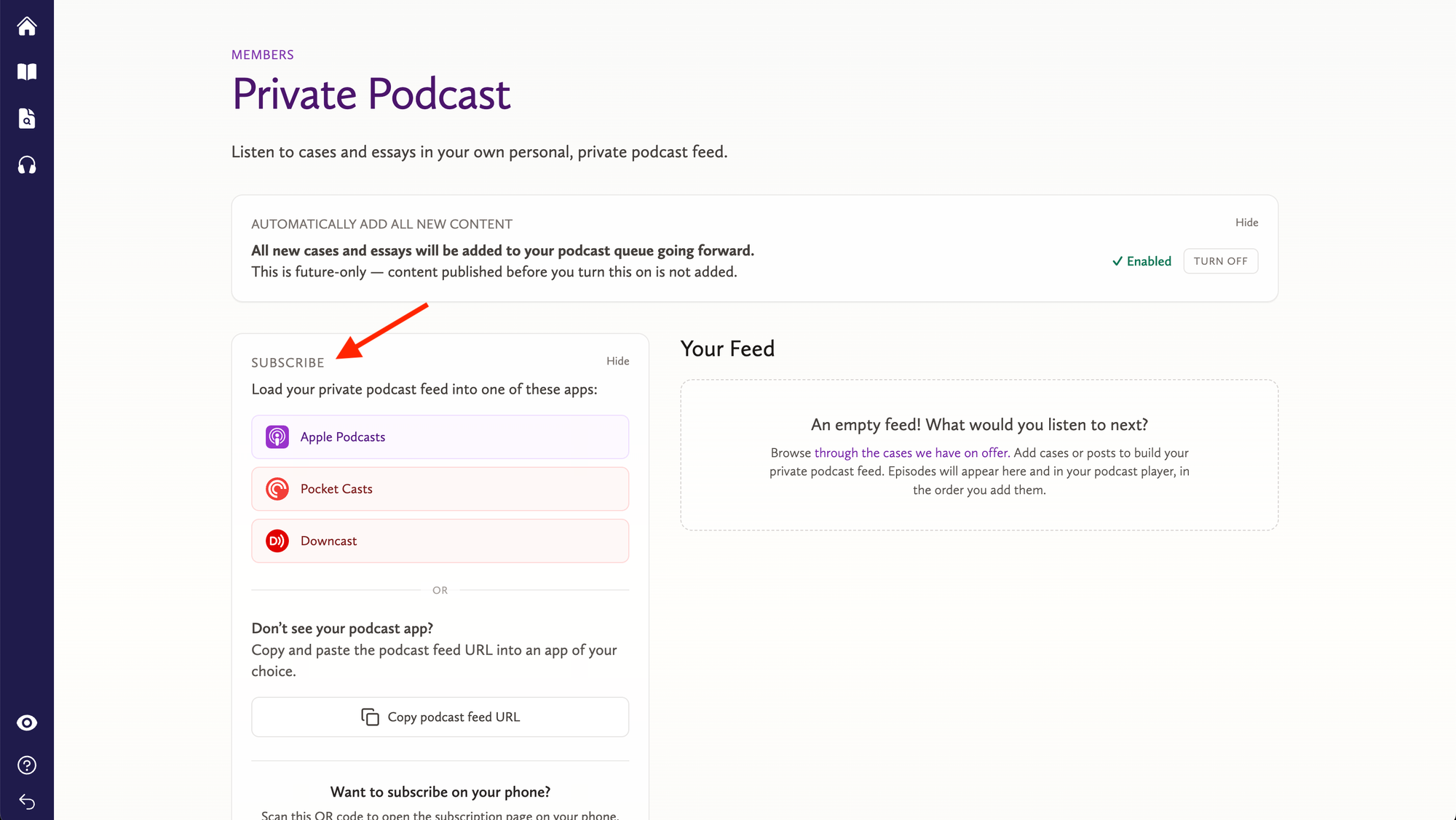
In order to subscribe to your custom feed, you should focus on the subscribe tab on the left. Note that the list of apps shown will change depending on your platform. So, if you’re on a Mac, you’ll see this:
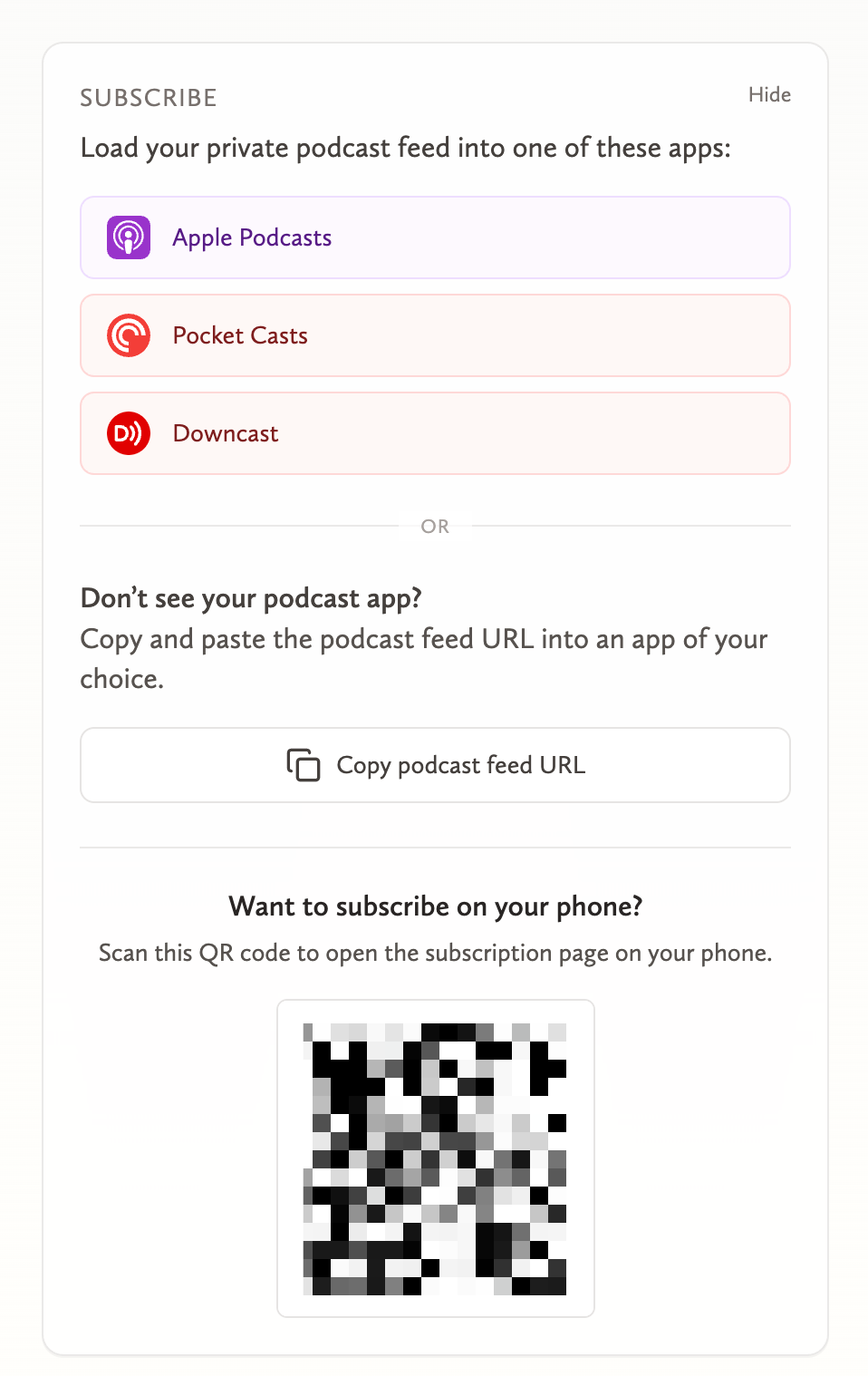
Most people will want to add their podcast feed to an app on their phone.
The QR code that is shown will allow you to open a special podcast subscription page on your phone.
Scan the QR code using your phone’s camera to open a special page on your phone. Note that this special subscription page is publicly available, so if you give your QR code to someone else, they, too, will be able to add your personal feed to their podcast player.
When I scan the QR code on my iPhone, using my Camera app, a link pops up in the camera (here’s more details on what this looks like). When I click that link, I see:
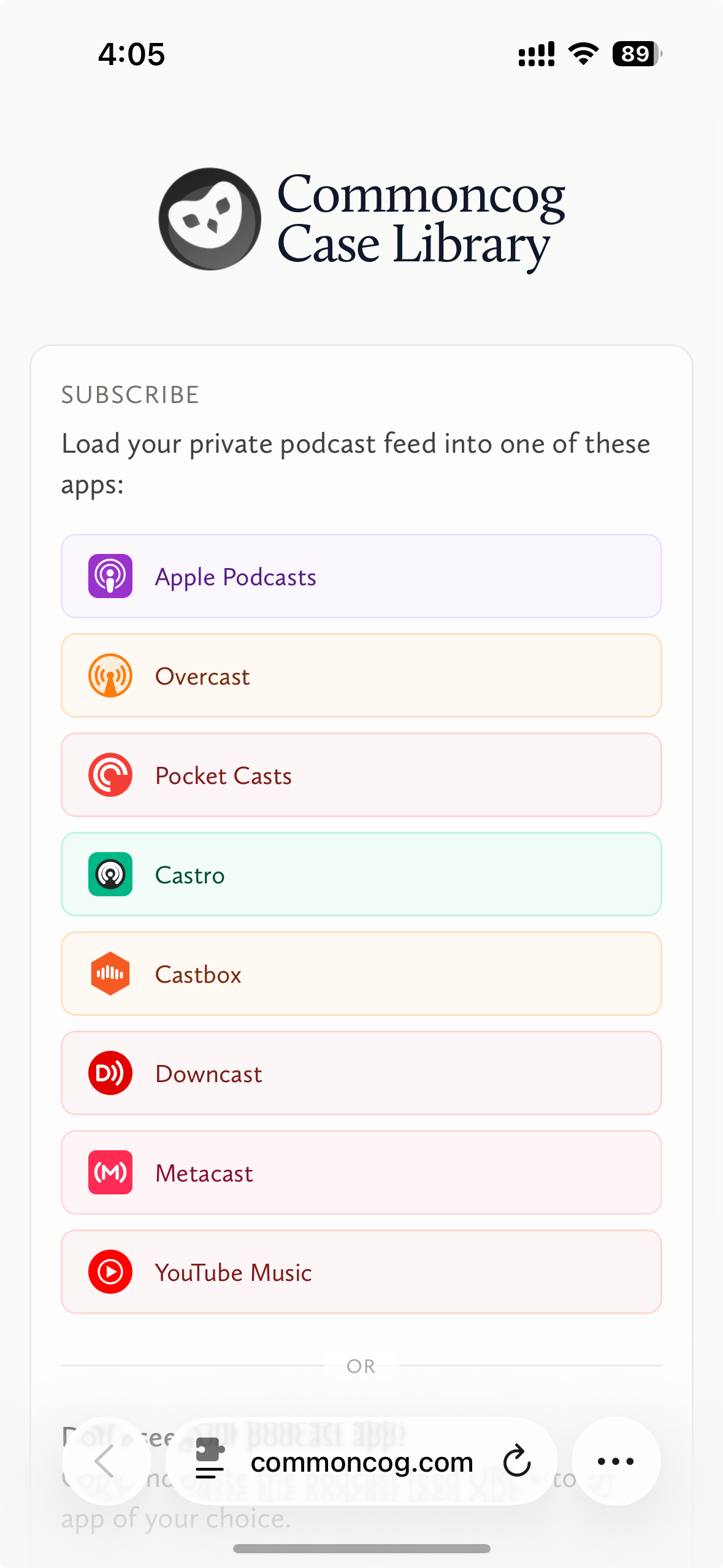
Notice that this list of podcast apps shown here are specific to the iPhone. If you open this same page on an Android phone, the list of apps will be different.
By this point, you should already have a podcast app on your phone. Select the app that you’ve chosen and tap its icon to add your private podcast feed to your chosen app.
Adding a Case to Your Feed
Now that you’ve got your podcast feed set up in your podcast player of choice, you will want to add new episodes to listen to.
There are a few ways to add a case as a podcast episode to your feed.
Adding New Cases Automatically
The first way is the simplest: by default, all newly published cases are automatically added to your feed. This option is available at the top of https://commoncog.com/c/podcast/ — and it’s turned on by default.

You may turn this off if you’d like.
Adding an Individual Case
At the top of every case is a podcast player section.
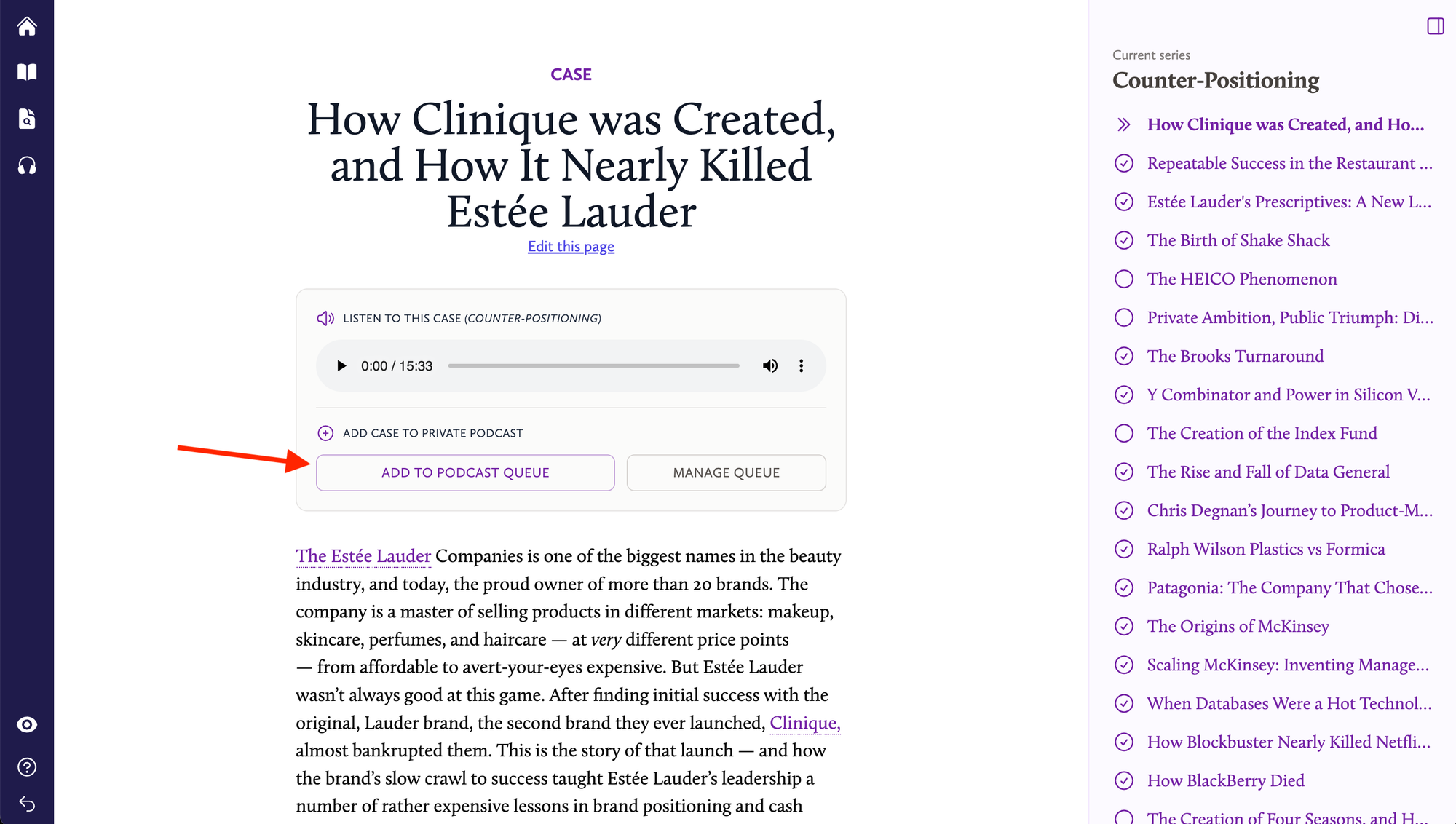
You may hit the ‘Add to Podcast Queue’ button in order to add that particular case to your feed.
This is the quickest way to get a case into your feed for listening later.
Adding an Entire Concept Sequence
You can also add a collection of cases to your podcast feed. Cases in Commoncog’s Case Library belong to at least one Concept.
If you go to a Concept page, you’ll now see a set of podcast controls. (Note that you may see the full list of available Concepts here).
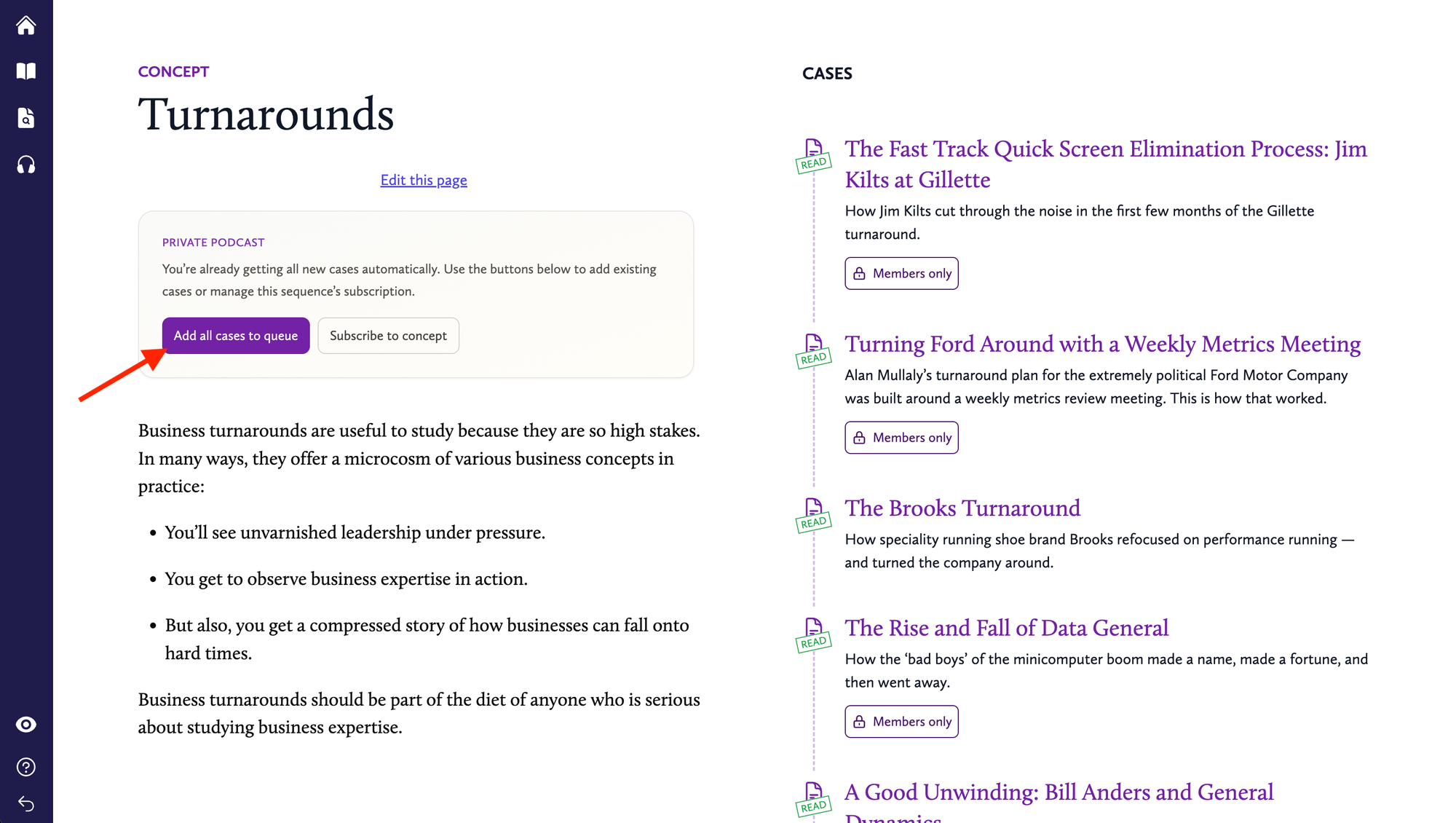
Clicking on the ‘Add all cases to queue’ button will do exactly what it says on the tin: add all the current cases in the concept to your podcast feed, so you can listen to all of those cases on the go.
Subscribing to a Specific Concept Sequence
Clicking on ‘Subscribe to concept’ means that new cases added to this concept sequence will automatically be added to your podcast feed.
You may view the full list of concepts you’ve subscribed to in your Private Podcast Management Page here:
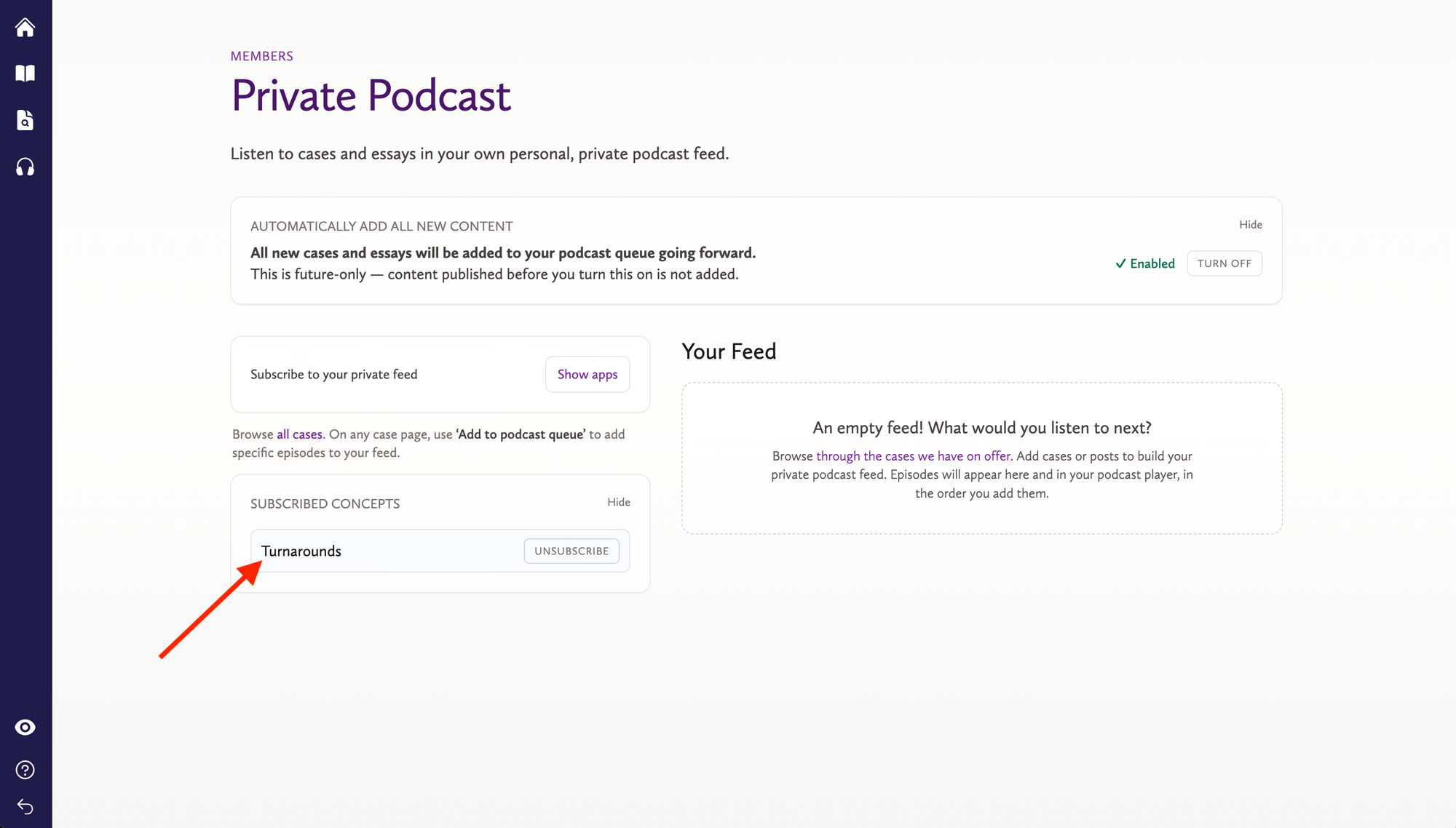
If you’ve set all new cases to be added automatically to your feed, this specific concept subscription feature doesn’t actually do much. New cases won’t be duplicated when they are published — they’ll just show up in your feed.
This feature is mostly useful if you only want cases in specific concepts to be added to your feed. In which case:
- Turn ‘Automatically Add All New Content’ off.
- Subscribe to specific concepts only.
What’s Next?
Audio versions of all Commoncog’s essays will soon be made available to members. We’ll likely start rolling them out with the latest essays first, then gradually work through the backlog.
As it turns out, verifying that AI-generated audio is of an acceptable listening quality takes a fair amount of human effort, and that’s why this is going to take some time. Reality truly has a lot of detail!